
From sign-up to synced calls in five steps
No hardware, no dialer, no new numbers. Administrators set up the workspace; employees connect their phones with a one-time code.
-
Create your organization
Create an account in the CallTrackly console. Your organization starts on a trial.
-
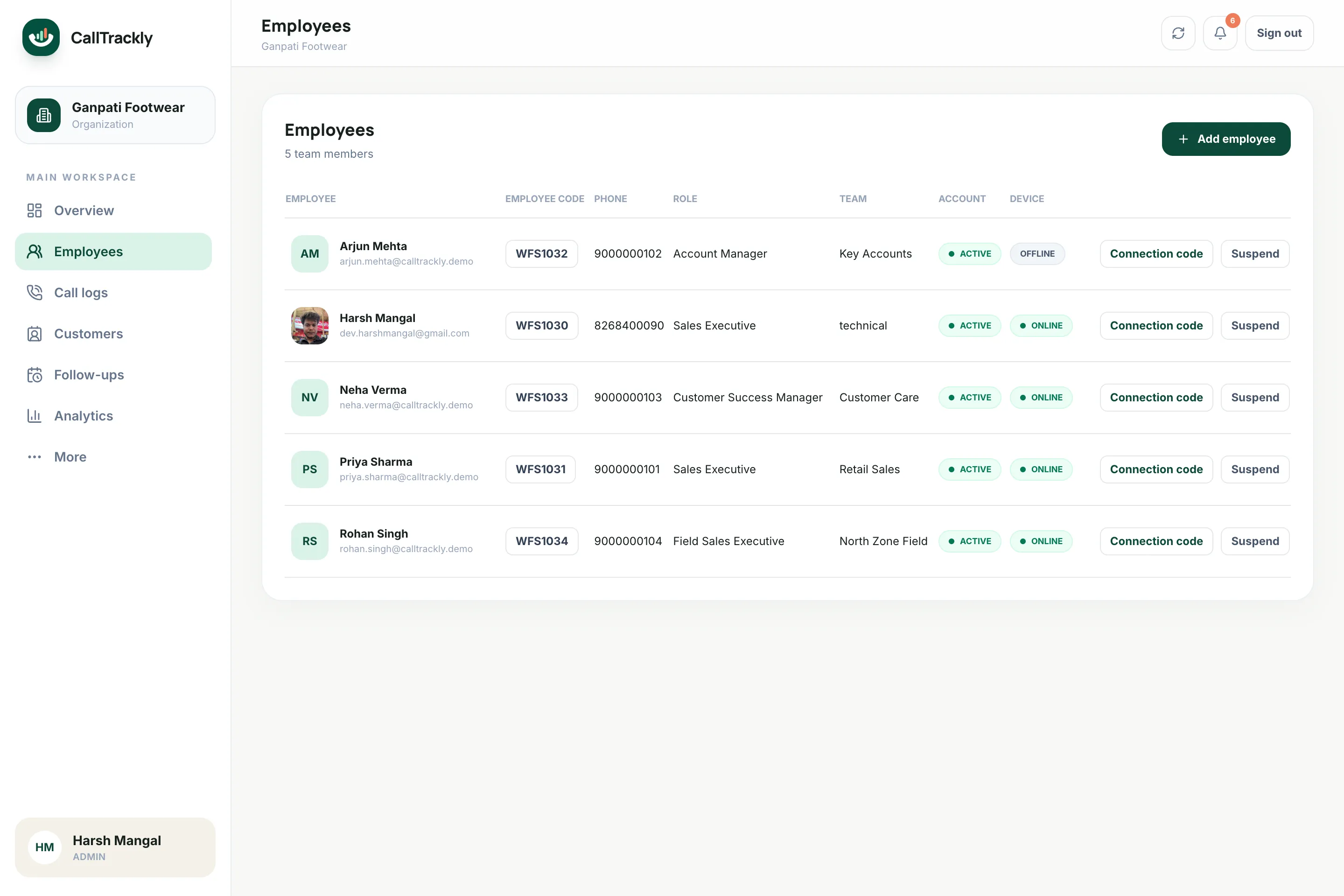
Add employees
Add the people who make business calls, and organize them into teams and departments.
-
Generate a connection code
Create a single-use connection code for each employee. Codes expire after 24 hours.
-
Connect the Android phone
The employee installs CallTrackly from Google Play, enters the organization code, reviews the disclosure, grants the required permissions, and selects the business SIM.
-
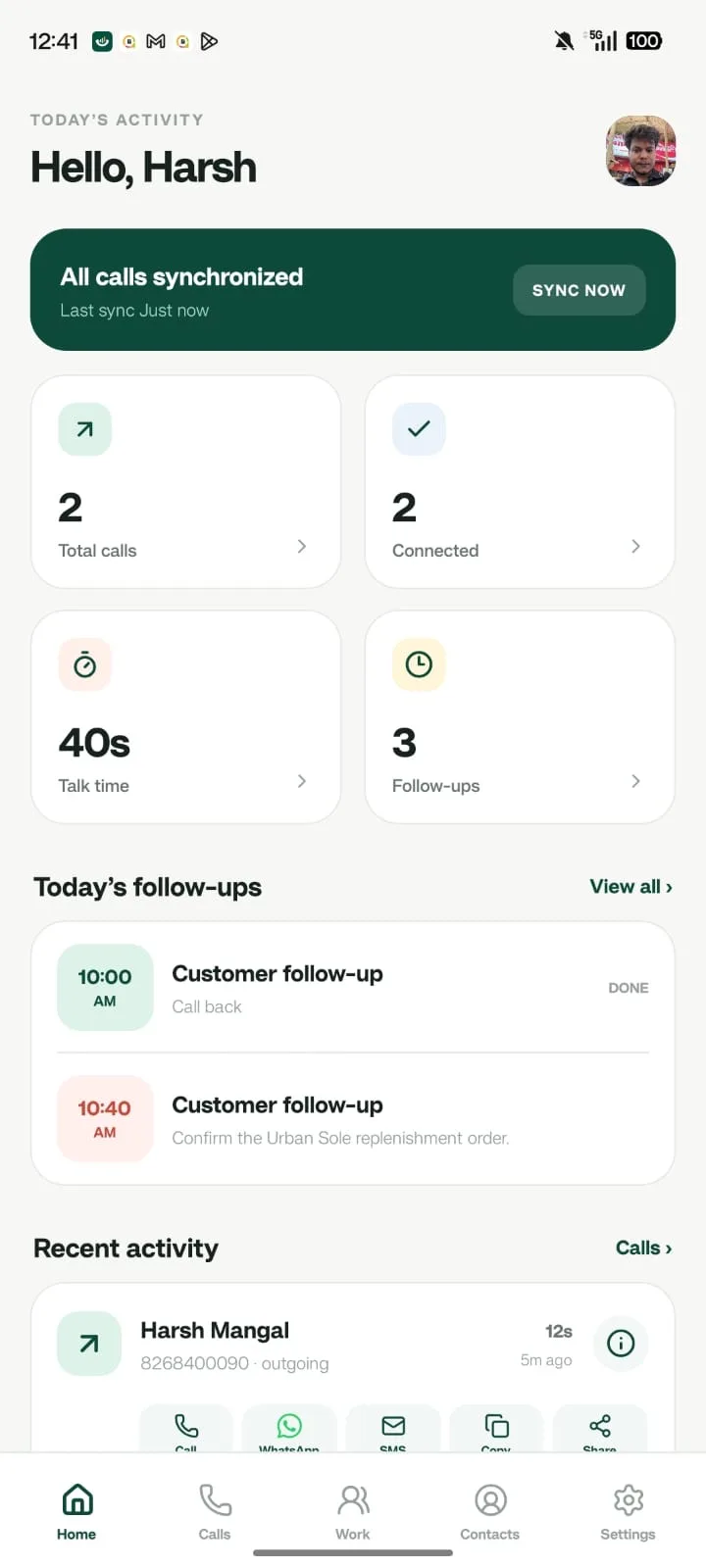
Calls sync automatically
Business-SIM calls sync in the background and are matched to customers and leads by phone number.
A workspace that's ready on day one
Add employees, connect devices, and configure what syncs before anyone makes a call.
- Single-use codes that expire after 24 hours
- Live device status and one-click revocation
- Feature controls for recording sync, lead access, and alerts
Connect once, then just make calls
CallTrackly is available on Google Play. Install it on your Android work phone and connect with your organization’s code.
After setup, employees use their phone normally. The app syncs in the background and prompts for a note when it matters.
- Clear explanation for every permission
- Works offline and catches up automatically
- Diagnostics show what needs attention
Setup questions
How long does setup take?
Creating your organization takes a few minutes. Each phone connects with a single code, so a team can be connected in one sitting.
Which permissions does the app need?
Call log and phone state to capture calls, contacts to show names, and notifications for reminders. The app explains each permission and shows anything missing in its diagnostics screen.
What if an employee leaves?
Revoke their device from the console. Their call history, customers, and notes stay with your organization and can be reassigned.
Know what happened. Know what happens next.
Bring business calls, customer context and follow-ups into one place.